


To test Global Privacy Control in GTM, perform the following steps: activate the GPC signal in browsers and verify, enable GTM Preview Mode, inspect GTM variables, inspect the Consent Tab, inspect "Tags Not Fired", and reload and re-test. Use CookieScript, a Google-certified CMP, to correctly handle GPC and cookie settings.
Global Privacy Control provides a universal, automated way for internet users to opt out of user tracking across different websites, without manually managing cookie settings on each site. When users activate the GPC signal, it sends signals for all websites the user visits that the user doesn’t want to sell or share their Personal Information.
Honoring a GPC signal is a legal requirement: many US data privacy laws, as well as Europe’s GDPR, require websites to opt out of user tracking when users enable Global Privacy Control.
Some browsers and extensions enable a GPC signal by default.
However, not all browsers have this option. Even if a browser could detect the GPC signal, the wrong configuration of the browser settings could lead to a situation where the signal is not honored. Non-compliance with data privacy laws could lead to penalties.
Therefore, it is essential to test Global Privacy Control.
You can test GPC in Google Tag Manager. Read this blog to learn how to test GPC signals in Google Tag Manager.
What Is Global Privacy Control (GPC) and Why It Matters
Global Privacy Control (GPC) is a browser setting that notifies website owners of users' privacy preferences regarding user tracking. A user only needs to activate the GPC signal once; there is no need to manually configure user preferences for each website. When users activate the GPC signal, it sends signals for all websites the user visits that the user don’t want to sell or share their Personal Information.
GPC is designed to provide a universal, automated way for consumers to opt out of the sale or share their Personal Information across different websites, without manually managing cookie settings on each site.
Unlike voluntary signals such as Do Not Track (DNT), GPC is legally enforced in 2026.
Honoring the opt-out mechanisms is now a legal requirement. Many US states explicitly mandate honoring universal opt-out mechanisms like GPC.
A Consent Management Platform (CMP) plays a vital role in receiving a GPC signal and applying the correct opt-out behavior. CMPs must be able to detect a GPC signal and adjust tracking behavior immediately once the signal is detected.
CookieScript CMP automatically detects incoming GPC signals and allows websites to respect user choices automatically without any coding or manual configuration. If a user has GPC enabled, your website can automatically honor the opt-out preference signal and adjust data sharing and ad/analytics behavior accordingly.
In 2024, users ranked CookieScript CMP on G2, a peer-reviewed website, as the best CMP for small and medium-sized companies. It’s also a Google-certified CMP.
How Google Tag Manager Receives GPC Signals
In 2026, GTM does not have a default button to receive Global Privacy Control signals. GTM can receive and process GTM signals either through direct JavaScript access or by Consent Management Platform (CMP) integration (recommended). Most modern CMPs like CookieScript have official GTM templates that manage the GPC detection automatically.
To avoid penalties for non-compliance with data privacy laws such as CCPA / CPRA (California), CTDPA (Connecticut) and other privacy laws in the US or GDPR in Europe, it is important to enable and test Global Privacy Control.
Website owners can test GPC in Google Tag Manager (GTM).
In 2026, GTM does not have a default button to receive Global Privacy Control signals. Instead, it relies on Variables to detect the signal from the browser and Consent Mode to enforce those preferences across your tags.
There are two primary ways GTM receives and processes these signals:
- Direct JavaScript access
- CMP integration.
1. The Direct Method: Custom JavaScript Variable
Browsers that support GPC expose it via navigator.globalPrivacyControl.
You should create a variable named {{CJS - GPC Signal}} with the following Javascript code:
function() {
return navigator.globalPrivacyControl === true;
}
This variable returns true if the user has GPC enabled and false (or undefined) if they didn't enable. Use this variable as a Blocking Trigger (Exception) for any tags that involve the sale or sharing of data, such as the Meta Pixel or TikTok Tag.
2. The CMP Method: Template Integration
This is the recommended method to manage GPC.
Most modern Consent Management Platforms (CMPs) like CookieScript have official GTM templates that manage the GPC detection automatically.
With CookieScript, it is very easy to detect and enable GPC:
To enable GPC, go to your CookieScript user account > Settings > Frameworks, where you will find GLOBAL PRIVACY CONTROL (GPC). Check the checkbox to accept cookies when the GPC signal is activated by a user browser.
Once enabled, the CMP then sends a denied state to the Data Layer for specific categories (e.g., ad_storage or ad_user_data) before any other tags fire.
GTM receives this state and automatically updates its internal Consent Mode settings, blocking user tracking. Google tags (like GA4 or Google Ads) only send cookieless pings instead of full tracking data.
Note: If you don’t actively enable the Global Privacy Control detection signal, GTM won’t see it. Thus, you need to set GPC and test it.
Prerequisites Before Testing GPC in GTM
You can test Global Privacy Control in GTM in Preview mode. However, before testing GPC, make sure all prerequisites for proper GPC functioning are in place, including:
- A Browser with GPC Enabled
- A CMP with GPC Enabled
- Access to Google Tag Manager Preview Mode.
1. A Browser with GPC Enabled
Not all browsers enable GPC by default.
The most common browsers that enable GPC by default, include:
- Brave.
- DuckDuckGo.
- Firefox (via settings or extensions).
- Privacy-focused Chromium builds, such as Ungoogled Chromium and Cromite.
Make sure to use a browser that enables GPC by default, or change the browser setting to enable GPC manually.
2. A CMP with GPC Enabled
The CMP must understand the GPC signal.
Use a CMP that supports GPC, such as CookieScript CMP. Make sure to enable Global Privacy Control on your CMP.
If you detect GPC using a custom JavaScript variable, make sure you have implemented the code navigator.globalPrivacyControl.
If your CMP or site never checks navigator.globalPrivacyControl, GPC will not be working in GTM.
At a minimum, you should be able to confirm in the console:
js
navigator.globalPrivacyControl === true
3. Access to Google Tag Manager Preview Mode
Lastly, use Google Tag Manager Preview Mode to test GPC signals.
Use GTM Preview to:
- Inspect variables
- See which tags fire
- Validate triggers in real time.
Test different scenarios in different browsers. Tags and triggers should fire as expected to honor the GPC signal.
When GPC Should Override Consent Settings
Sometimes, user consent settings and Global Privacy Control send conflicting signals. For example, users accept all cookies when GPC is enabled.
This is the situation where many implementations fail. Things can get legally sensitive, even if GPC and cookie settings are each implemented correctly separately.
Most data privacy regulations have the following interpretations:
- GPC represents a valid opt-out signal.
- GPC should override the default Accept options.
- GPC applies even if users do not interact with a consent banner.
Note: GPC has superior power over the Cookie Consent selection. When GPC is activated, analytics, marketing, and tracking tags should not fire. If GPC is detected, set Cookie Consent states to Reject by default.
GPC should be working automatically. The user doesn’t need to click any additional buttons.
If your CMP allows users to “Accept all” while GPC is enabled, your compliance could be risky. Implement settings in a way that GPC and Cookie Consent settings do not conflict with each other.
How to Test GPC Signals in Google Tag Manager
Testing Global Privacy Control in GTM ensures your opt-out triggers are firing correctly.
To test GPC signals in Google Tag Manager, perform the following steps:
Step 1. Activate the GPC signal in browsers and verify
Before testing in GTM, you must ensure your browser is actually sending the GPC signal.
- Browser settings: Use Brave, Firefox, or DuckDuckGo, and ensure the Global Privacy Control signal is enabled in your privacy settings.
- Chrome extension: If you use Chrome, install OptMeowt or Privacy Badger.
- Verification: Visit globalprivacycontrol.org. If you have activated GPC, the website will show a "GPC Signal Detected" banner.
Step 2. Enable GTM Preview Mode
Open GTM Preview mode and load your site with GPC enabled.
Step 3: Inspect GTM variables
If you’ve created a custom JavaScript variable or a dataLayer value from your CMP, GTM should return true.
Click on any event (e.g., "Consent Initialization" or "Container Loaded"). In the Variables tab, find your GPC detection variable (e.g., {{CJS - GPC Enabled}}). It should return true.
If GTM shows undefined, the signal isn’t reaching it.
Step 4: Inspect the Consent Tab
If you have integrated GPC with Google Consent Mode v2, click the Consent tab. You should see that ad_storage and ad_user_data are denied immediately upon page load, even before the user interacts with a banner.
Step 5: Inspect "Tags Not Fired"
Check the Tags tab. Your tracking pixels (Meta, TikTok, Google Ads) should be listed under "Tags Not Fired". Click the tag to verify the firing requirement failed because of the GPC blocking trigger.
Step 6: Reload and re-test
Hard refresh the page or use Incognito mode and test again. Make sure:
- You don’t receive any cached consent state.
- A previous banner interaction is not interfering.
Trigger Validation, Browser Console & Network Checks
Once GTM can see the GPC signal, check the trigger validation.
You should check:
- Whether analytics tags still fire on page load.
- Whether marketing tags fire before consent.
- Whether triggers respect GPC-based conditions.
Use this best practice for trigger logic:
Instead of
Fire tag when consent = granted
Use:
Fire tag when consent = granted AND GPC ≠ true
This prevents accidental firing when:
- Consent defaults to granted.
- GPC should force an opt-out.
Also, check tag sequencing — blocked tags firing before consent updates is a common issue.
To be 100% safe GPC is working properly, check outside of GTM's interface.
- Check GPC using browser console: Open the browser console (F12) and type navigator.globalPrivacyControl. It must return true.
- The HTTP Header: Go to the Network tab, refresh the page, and click on your domain's main request. Under Request Headers, look for Sec-GPC: 1
Debugging & Troubleshooting GPC Signals
If GPC signals do not behave as expected, it’s usually one of these issues:
- GPC Is True, but Tags Still Fire.
- GPC Doesn’t Appear in GTM at All.
Use these troubleshooting options to solve the problem.
1. GPC Is True, but Tags Still Fire
Possible reasons:
- GPC isn’t included in trigger conditions.
- Consent is cached from a previous session.
- CMP was updated after tags fire.
Possible solution:
- Add explicit GPC checks.
- Clear cookies and localStorage.
- Delay tags until consent logic completes.
2. GPC Doesn’t Appear in GTM at All
Possible reasons:
- The browser doesn’t support GPC.
- A CMP doesn’t support GPC.
- Custom variable is misconfigured.
Possible solution:
- Test directly in the console.
- Log values into the Data Layer temporarily.
- Verify variable scope and timing.
Best Practices for Handling GPC in Google Tag Manager
Use these best practices for implementing GPC in GTM effectively and compliantly:
- Implement a Google-certified CMP
The most reliable way to honor GPC is to use a Google-certified Consent Management Platform (CMP). Google cooperates with CMPs through its certified partner program. Certified CMPs like CookieScript detect the GPC signal automatically and update the GTM Data Layer without custom code. They translate the GPC signal into a denied state for Consent Mode v2 parameters like ad_storage and ad_personalization. - Prioritize the GPC signal over Cookie Banner signals
If a user sends a GPC signal to opt out of tracking but your Cookie Banner sends "Accept All," honor the GPC signal. - Detect and execute GPC early
Set your GPC detection script or CMP tag to fire on the Consent Initialization trigger. This ensures tracking is blocked before any other tags fire. - Broadcast via Global Privacy Platform (GPP)
Forward the GPC signal to your downstream vendors (ad networks, marketers), so they also know they need stop tracking. Use the IAB Global Privacy Platform (GPP) string in GTM to inform your vendors. When GPC is detected, GTM should update the GPP string to reflect the opt out status. This ensures that even if a tag fires (like a restricted-mode Google Tag), the vendor knows not to use that data for behavioral targeting. - Don't treat GPC as "Reject All"
A common mistake is using GPC to block all cookies. GPC send a signal to opt-out for the sale/sharing of data and targeted advertising. You are allowed to fire strictly necessary tags and, in many jurisdictions, First-party analytics (in a restricted, non-sharing mode) even when GPC is active. - Clearly configure GPC in GTM
Surface GPC clearly into the dataLayer and use GPC as a hard condition in triggers. - Test GPC in multiple conditions
Make sure all GPC tags fire correctly. Test across multiple browsers. Re-test after CMP or GTM updates. - Document your GPC settings
When regulators, clients, or internal teams ask why a tag didn’t fire, you should have a clear answer.
Use CookieScript CMP to handle GPC signals in GTM.
CookieScript is valued by users. In 2024, users ranked CookieScript CMP on G2, a peer-reviewed website, as the best CMP for small and medium-sized companies. CookieScript is also certified by Google. It received a golden tier in Google’s tiering system.
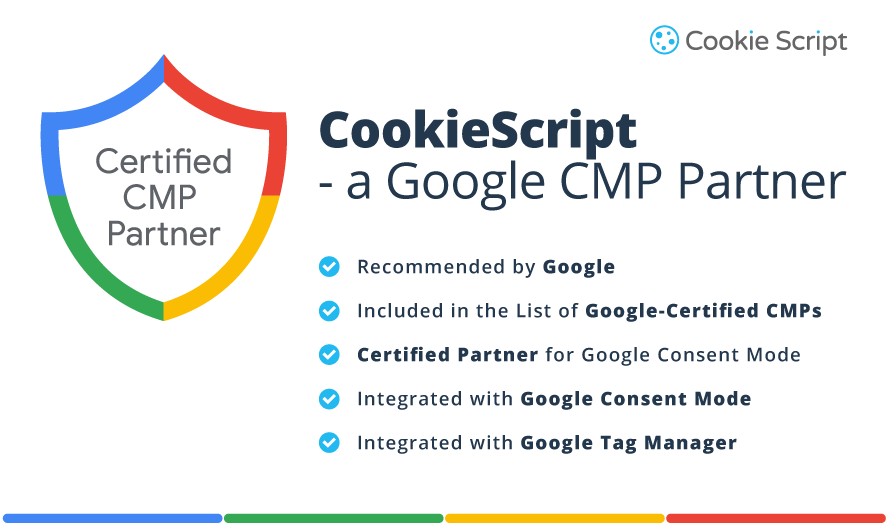
CookieScript CMP has the following features:
- Certification by Google with a golden tier in Google’s tiering system.
- Google Consent Mode v2 integration
- IAB TCF v2.2 integration
- Google Tag Manager integration
- CookieScript API
- Cookie banner customization
- Cookie Scanner
- Integrations with CMS platforms like Magento, WordPress, Joomla, etc.
- Consent recordings
- Third-party cookie blocking
- Geo-targeting
- Cross-domain cookie consent sharing
Frequently Asked Questions
When should Global Privacy Control (GPC) override user consent settings?
GPC has greater control over user consent settings. When GPC is activated, analytics, marketing, and tracking tags should be turned off, even if users allow them. If GPC is detected, set Cookie Consent states to Reject by default. Use CookieScript, a Google-certified CMP, to correctly handle GPC and cookie settings.
How does Google Tag Manager receive GPC signals?
In 2026, GTM does not have a default mechanism for receiving Global Privacy Control signals. GTM can receive and process GTM signals either through direct JavaScript access or by Consent Management Platform (CMP) integration (recommended). Most modern CMPs like CookieScript have official GTM templates that manage the GPC detection automatically.
How to Test GPC Signals in Google Tag Manager?
To test Global Privacy Control in GTM, perform the following steps: activate the GPC signal in browsers and verify, enable GTM Preview Mode, inspect GTM variables, inspect the Consent Tab, inspect "Tags Not Fired", and reload and re-test. Use CookieScript, a Google-certified CMP, to correctly handle GPC and cookie settings.
Global Privacy Control (GPC) is True, but tags still fire. How to solve it?
Possible reasons and solutions: 1. GPC isn’t included in trigger conditions: add explicit GPC checks; 2. Consent is cached from a previous session: Clear cookies and localStorage; 3. CMP was updated after the tags fire: delay tags until consent logic completes. Use a CookieScript CMP that supports GPC and is integrated with GTM.
What to do if during testing Global Privacy Control (GPC) doesn’t appear in GTM at all?
Possible reasons and solutions: 1. The browser doesn’t support GPC: test directly in the console; 2. A CMP doesn’t support GPC: log values into the Data Layer temporarily; 3. custom variable is misconfigured: verify variable scope and timing. Use a CookieScript CMP that supports GPC and is integrated with GTM.